
SourceCloud PDF features
What the free PDF viewer for Windows can do, explained in detail.
Fast and frugal
On our test computer the first page appears after about a quarter of a second, and nothing computes while idle.
SourceCloud PDF is a standalone Windows program. It shows the document straight away and renders the pages you are looking at before the thumbnails in the sidebar.
Measured from program start to the first visible page: median 242 ms across 20 starts with a ten-page test PDF on Windows 11, AMD Ryzen 9 7950X, NVIDIA GeForce RTX 4060 Ti. Results differ on other computers.
While a document just sits open, SourceCloud PDF uses no processor time; we measured 0 ms in ten idle seconds.
SourceCloud PDF needs neither an account nor an internet connection and sends no usage data.
No file locks, automatic reload
Other programs can rewrite the open PDF. SourceCloud PDF shows the new version on its own.
Many programs rewrite PDFs again and again, for example when exporting or regenerating a report. If a viewer keeps the file open, the writing program cannot replace it.
That is why SourceCloud PDF never reads the file itself. It makes its own copy and shows that. The original stays unlocked.
When the file changes, SourceCloud PDF waits for a short pause and loads the new version. You stay on the same page. If the new version cannot be read yet, for example because the writing program has not finished, the previous view stays.
Good to know
If the new version has fewer pages, you land on its last page.
Light and dark, interface and pages separately
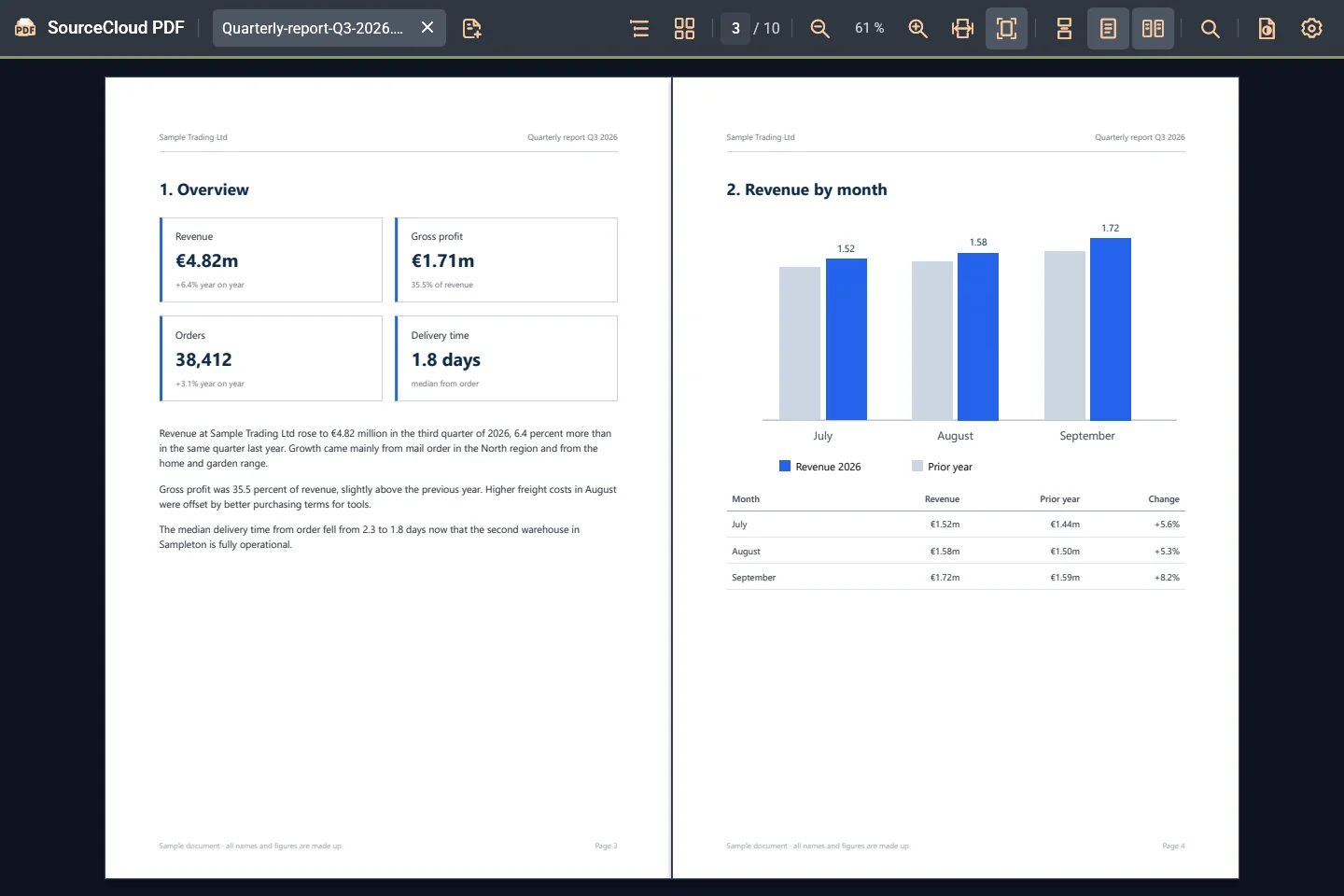
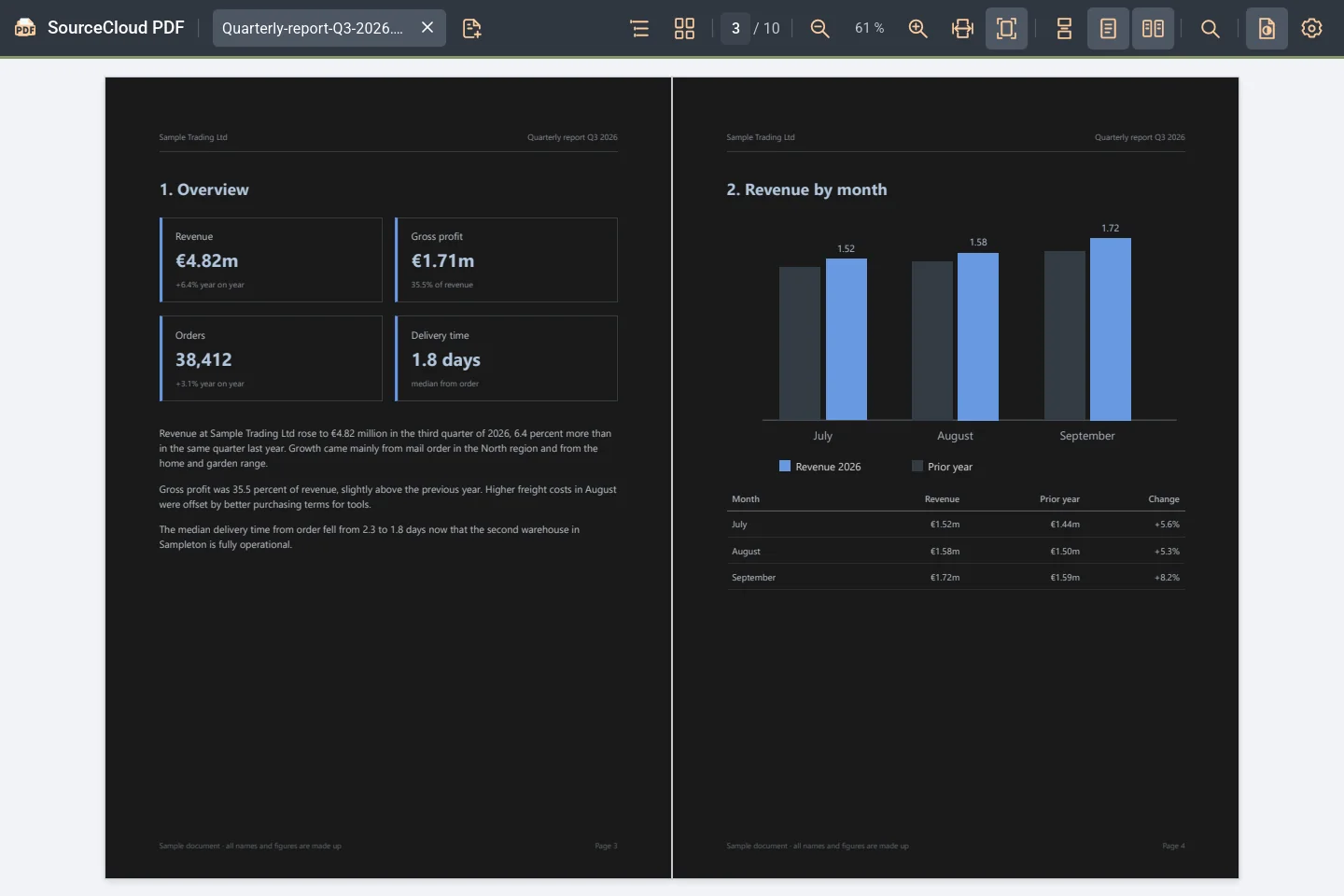
The interface follows Windows or stays light or dark. Independently, you show the pages in their original colors or dark.
Under “Settings”, choose “Same as system”, “Light” or “Dark” for the interface. “Same as system” follows a change in Windows immediately, without a restart.
Independently, “Dark pages” in the toolbar shows the document pages in dark. That way you can read in the evening without glaring pages while the interface stays light. Or you keep the original colors in a dark interface, for example to check charts.
Good to know
Dark pages change only the display, not the file.
3D page turning
The sheet bends like paper as you turn it, with a back side, light and shadow.
Under “Settings”, turn on “3D page turning”. SourceCloud PDF then scrolls page by page, and every page turn shows a sheet that bends like paper: it lifts and curls. In two-page view it lands on the other side; with single pages it fades out at the left edge.
Grab the sheet at its outer edge with the mouse, and the spot matters: at the corner you get a slanted dog-ear, in the middle of the edge a roll almost parallel to the spine. Let go and the page turns or falls back; a short, quick pull carries momentum.
In two-page view you turn forwards and backwards like a book, and the back of the sheet is the next left page. The mouse wheel and the Page keys turn pages with the same animation, even while a sheet is still moving.
Good to know
3D page turning stays off until you turn it on.
Search the whole document
Matches appear while the search is still running, with a list, highlights and F3.
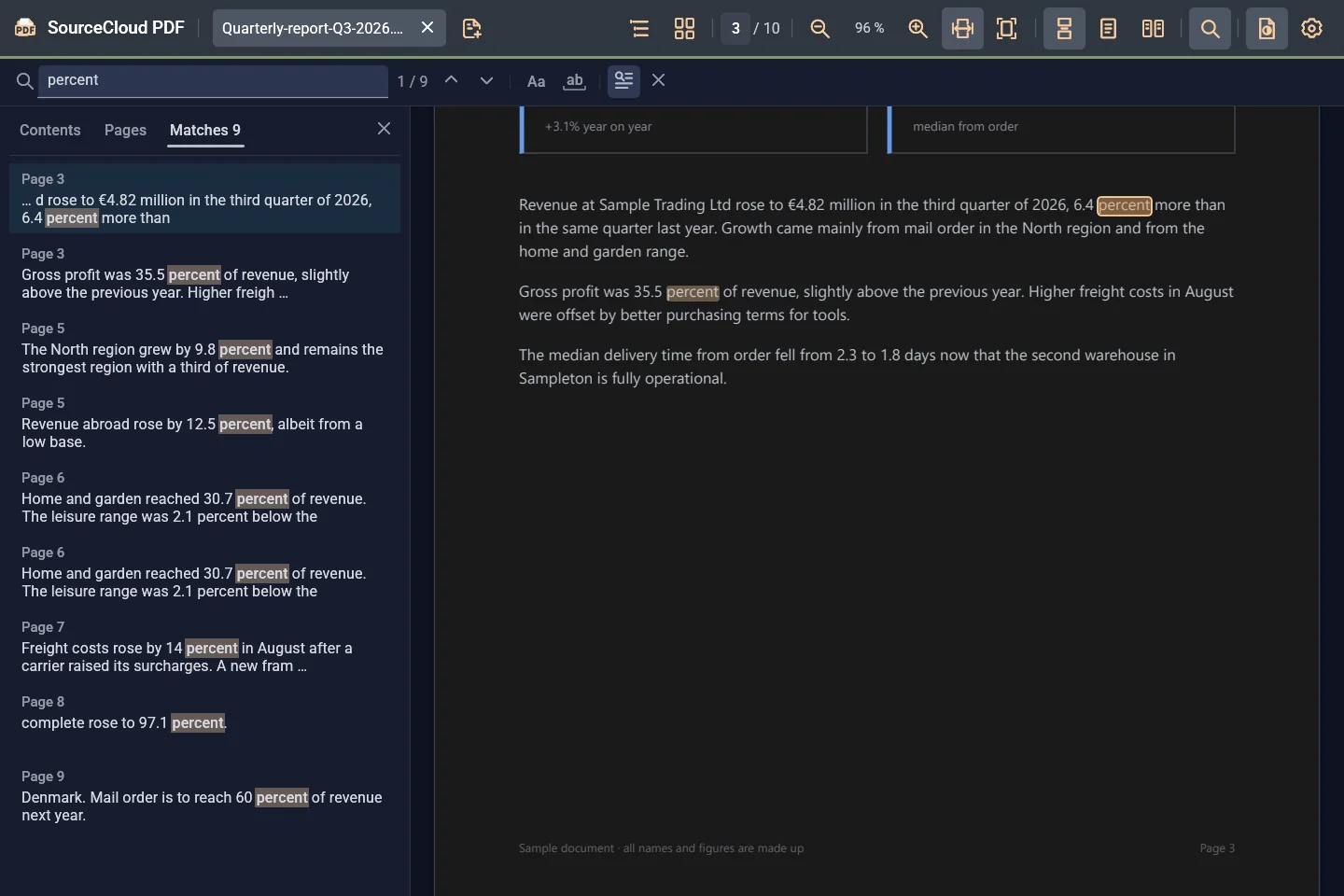
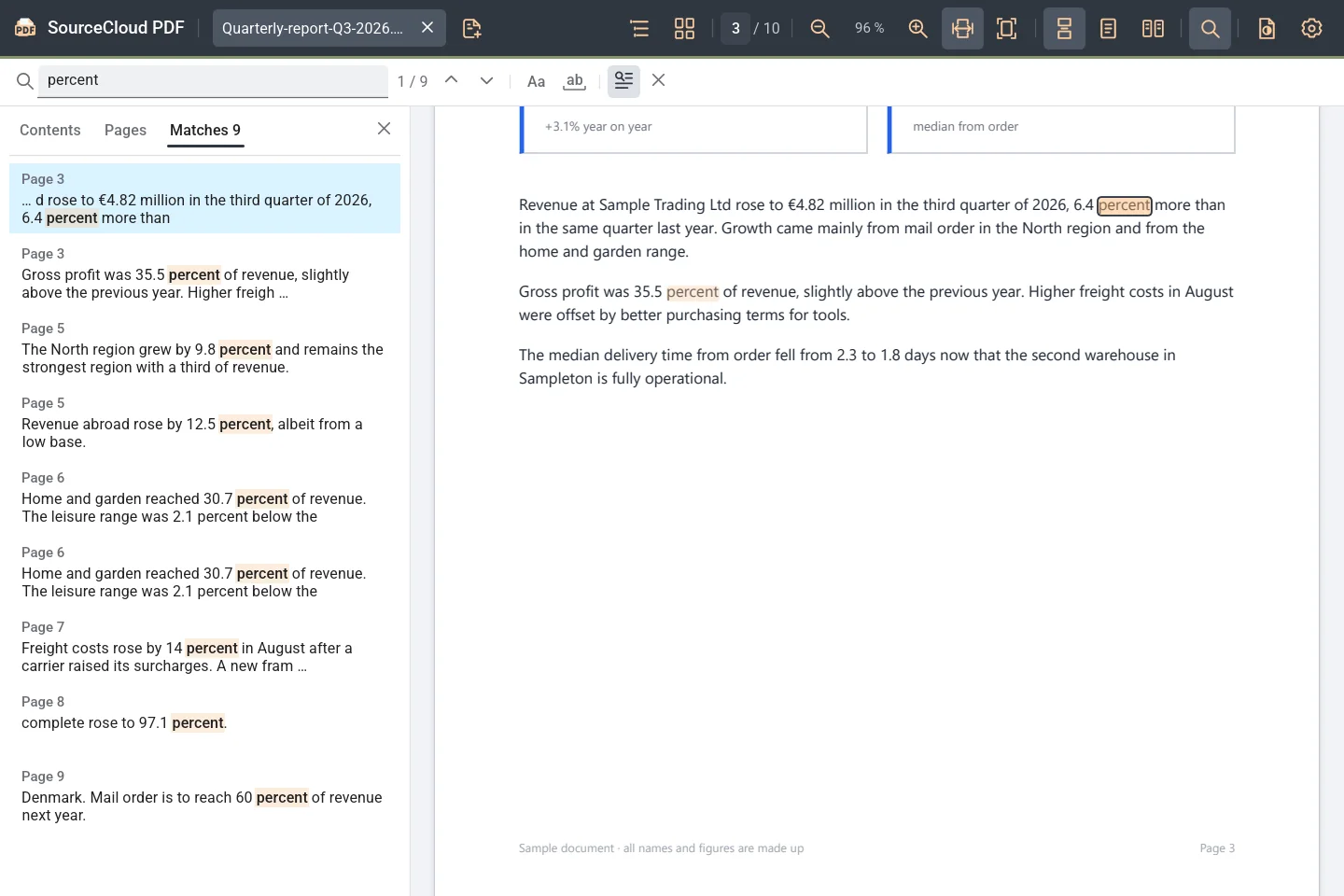
Ctrl+F opens the search. The first matches appear while SourceCloud PDF is still searching the document. They are highlighted on the page; F3 and Shift+F3 jump to the next and previous one.
The “Matches” tab in the sidebar lists every match with its page and a text excerpt; one click takes you there. If you like, the search matches case or finds whole words only.
Good to know
At most the first 5,000 matches are shown. Scanned pages without a text layer cannot be searched.
Reading and navigation
Tabs, two-page view, contents, page thumbnails and zoom.
Open several documents as tabs: drag them into the window, use “+” or press Ctrl+O. Ctrl+Tab switches, Ctrl+W closes. Each tab keeps its page, zoom and search.
Scroll continuously or page by page; in page-by-page mode the mouse wheel and the Page keys move whole pages. “Two pages side by side” shows spreads like a book.
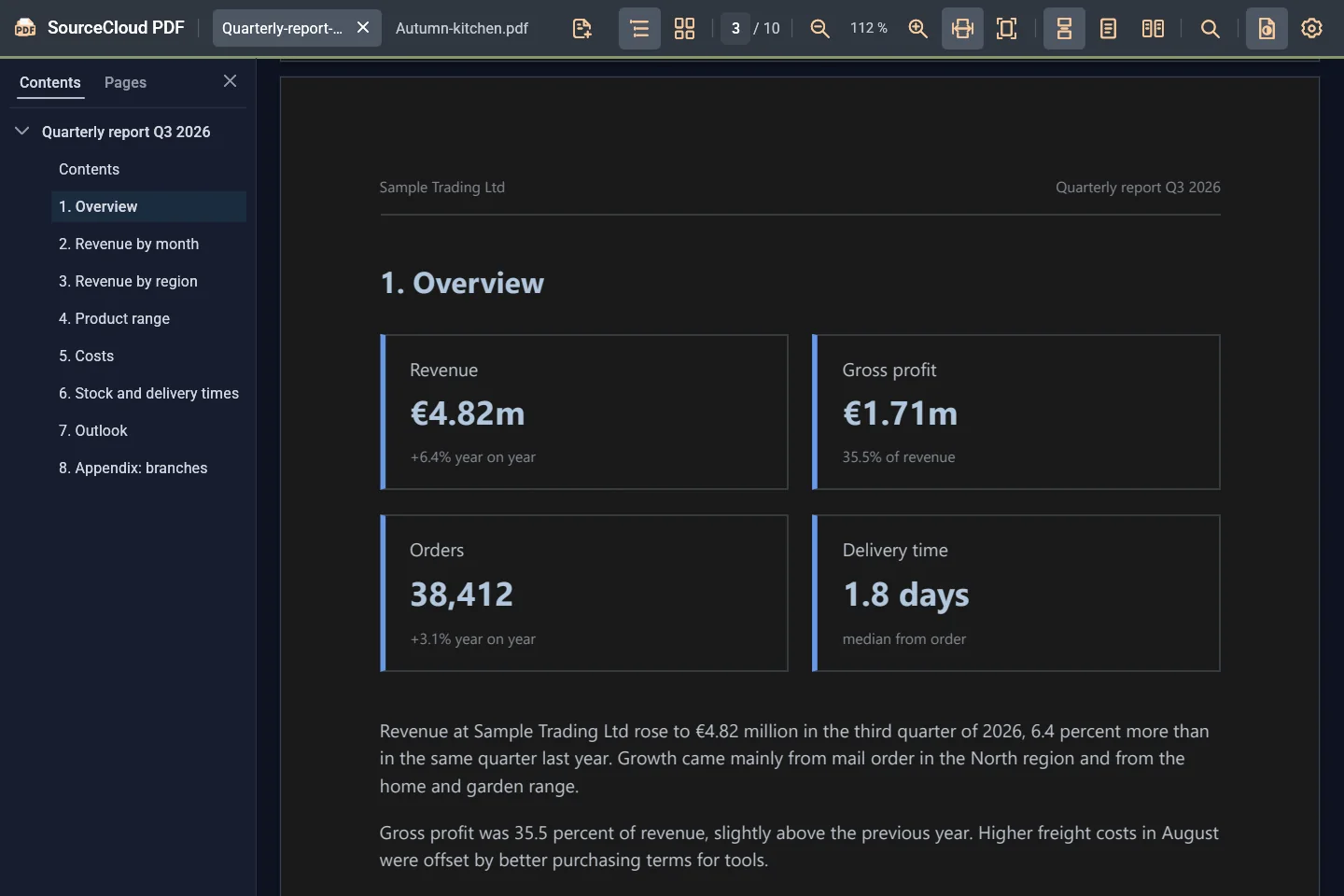
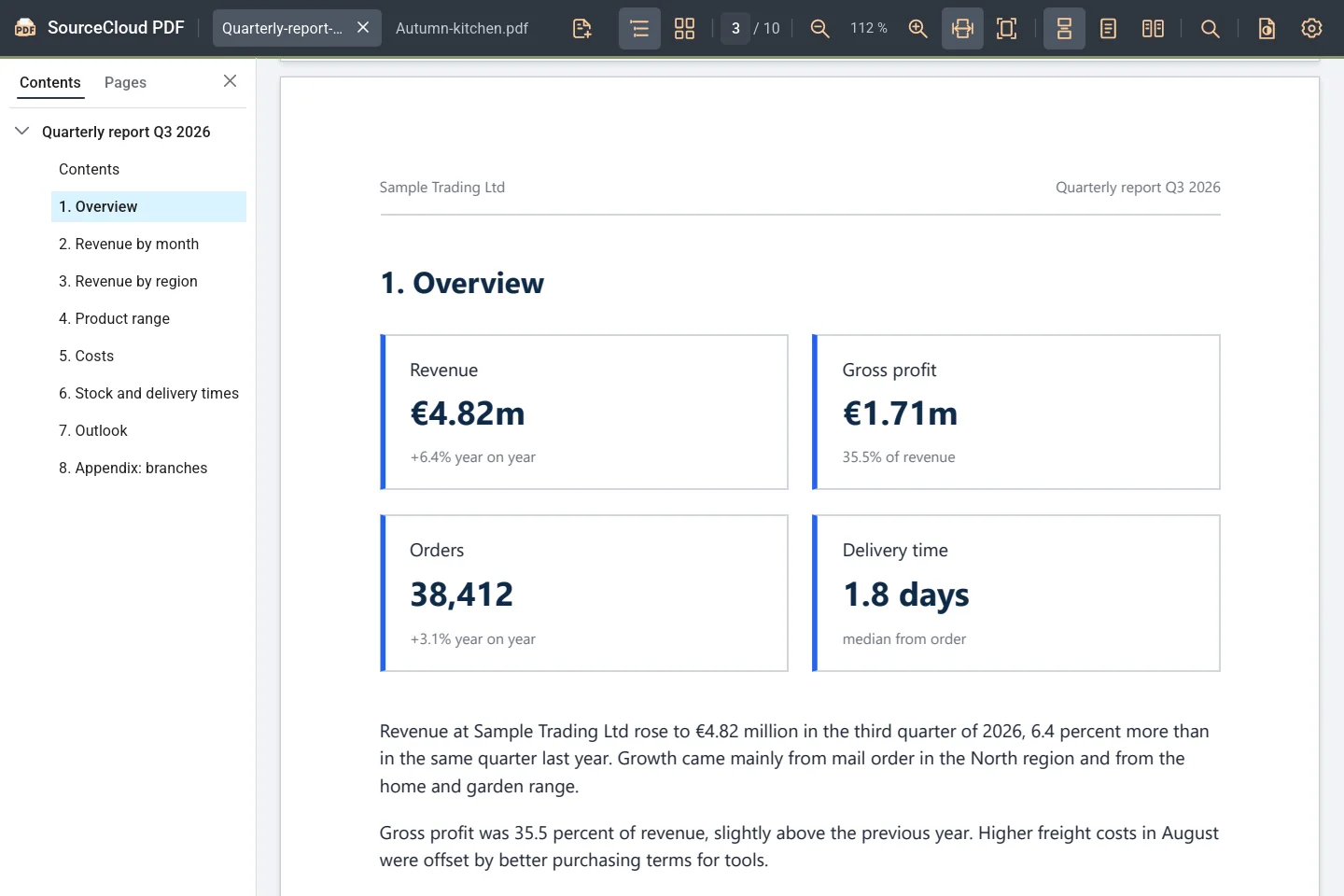
The sidebar shows the contents with the current section and page thumbnails. Use the page number in the toolbar to jump straight to any page.
Fit the page to the width or to the whole window, or zoom with Ctrl+mouse wheel, Ctrl+Plus and Ctrl+Minus. The interface speaks English and German and follows the language of Windows by default.
Total Commander and Windows Explorer
Optional in setup: the same view in the Total Commander quick view and in the Explorer preview pane.
If you choose the Total Commander integration during installation, Total Commander (64-bit) shows PDFs with SourceCloud PDF in the quick view (Ctrl+Q) and in Lister (F3). It is registered after SourceCloud PDF has started once and Total Commander has restarted.
While you move through the file list, focus stays in the list as long as Total Commander is in front. The bar is compact, with the same icons as the app. “Open in SourceCloud PDF” hands the file, page and current search over to the app.
With the Explorer preview component, the Explorer preview pane shows PDFs with SourceCloud PDF, light or dark like Windows. When you uninstall SourceCloud PDF, setup restores the previous PDF preview.
Good to know
Neither component is preselected during installation.
Download SourceCloud PDF for free
For Windows, with no account and no subscription.
Download free for Windows